 WavNerd
WavNerd
WavNerd
The recorder built into your Mac captures a take and stops there. A studio suite wants a subscription and a weekend of your life. WavNerd is the step in the middle: record, tighten, clean up, retime, export — and get on with your day.
Requires macOS 26.2 or later · One-off purchase, no subscription
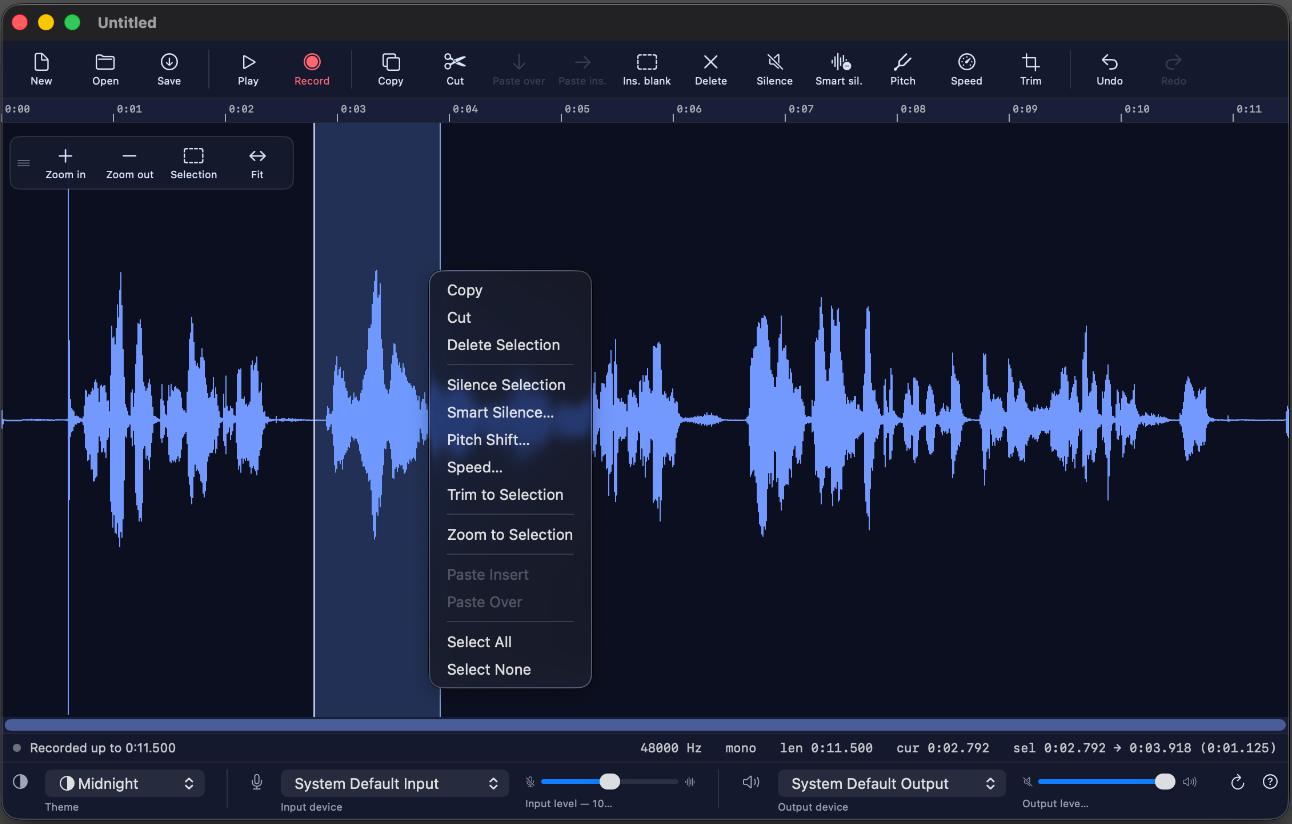
Recording a take, with the selection menu open. Shown in the Midnight theme — one of eighteen.
Where it sits
Most people who record a meeting or a voice-over do not need mixing, MIDI or plug-in chains. They need to cut the dead air out, fix the line they fluffed, and export something sensible.
Captures a take, and stops there. No trimming, no cleanup, no choice of format.
FreeRecord, tighten, clean, retime, export. Learn the whole thing in an afternoon.
One-off priceMixing, MIDI, plug-ins, automation. Far more than a spoken take ever needs.
Subscription, or €200+What you get
Everything works on a selection you drag on the waveform, and every edit is one step on a 25-deep undo stack.
Drop the cursor on the line you fluffed and record straight over it. The cursor jumps back when you stop, so you can play the take immediately.
Mutes the room tone and hiss between phrases, with short fades so nothing clicks. Shaded bars show exactly what would go before you commit.
Move a voice up or down in semitones while the timing stays exactly where it was.
Retime a rambling section. The voice stays the same voice — no chipmunks.
Copy, cut, paste over or paste in, delete, silence, trim to selection, or open a gap of a chosen length at the cursor.
Opens WAV, MP3, M4A, AIFF, CAF and FLAC. Writes WAV at 16-bit, 24-bit or 32-bit float, plus AIFF, CAF, M4A (AAC or Apple Lossless) and FLAC.
Zoom from the whole file down to individual samples, with floating zoom controls you can drag wherever you like.
No account, no analytics, no network code at all. Your recordings stay on your disk.
Made for
Cut the dead air out of an hour of recording and keep what was actually said.
Re-record the sentence you stumbled on without redoing the whole take.
Trim, clean and retime narration until it lands under the picture.
Assistance
If something here does not answer your question, write to appstore@starn.fr and describe what you were doing when it went wrong.
| File and edit | |
|---|---|
| ⌘N | New empty sequence |
| ⌘O | Open |
| ⌘S | Save as |
| ⌘Z / ⇧⌘Z | Undo / Redo |
| ⌘C / ⌘X | Copy / Cut |
| ⌘V | Paste, pushing the rest right |
| ⇧⌘V | Paste over what is there |
| ⌫ | Delete selection |
| ⌘L | Silence selection |
| ⌘T | Trim to selection |
| ⌘A / ⇧⌘A | Select all / none |
| Transport and view | |
|---|---|
| Space | Play / stop |
| ⌘R | Record / stop recording |
| Home / End | Go to start / end |
| ⌘+ / ⌘− | Zoom in / out |
| ⌘E | Zoom to selection |
| ⇧⌘F | Fit the whole file in the window |
Smart silence, Pitch, Speed and Insert blank ask for a value first, so they have no keyboard shortcut. Reach them from the toolbar or by right-clicking the waveform.
It opens WAV, MP3, M4A, AIFF, CAF and FLAC. It saves WAV at 16-bit, 24-bit or 32-bit float, AIFF, CAF, M4A as AAC or Apple Lossless, and FLAC. The Format popup in the save panel chooses; if you type a different extension by hand, WavNerd respects that instead.
Copy, Cut, Delete, Silence, Smart silence, Pitch, Speed, Trim and Zoom to selection all act on a selection. Drag across the waveform first and they light up. Insert blank works from the cursor, so it is always available.
Pitch moves the notes without changing how long the selection is — a voice gets higher or lower but keeps its timing. Speed changes how long it takes to play without moving the notes — the same voice, faster or slower. Each leaves the other alone, which is exactly what makes them useful on speech.
Open it with a selection and watch the shaded bars on the waveform: they mark what would be muted at the level currently set. Slide until the bars cover the gaps between phrases but not the phrases themselves, then Apply. −45 dB is a sensible starting point for a quiet room. Passages shorter than about a sixteenth of a second are left alone, so gaps between words survive.
No — that is the time-stretching algorithm. Below roughly 0.6× it starts to smear transients, so consonants and any percussive sound go soft. Small changes, say 0.85× to 1.2×, are close to transparent on speech.
Yes. Recording, every edit and every effect is a single step on a 25-deep undo stack. ⌘Z steps back, ⇧⌘Z forward.
Drag the grip on their left edge. The position is remembered, and if you resize the window so they would end up off-screen, they come back to the nearest edge.
Choose Help ▸ Show Tips Again, or click the ? button at the right-hand end of the device row. Either one clears the tips you have dismissed and runs the tour from the start.
It follows your macOS language automatically, in English, French, German and Spanish. Anything else falls back to English.
No. There is no networking code in the application at all: no analytics, no accounts, no cloud. Your recordings never leave your Mac. See the privacy policy.
Check the input device in the row at the bottom of the window — “System Default Input” follows whatever macOS is set to, which may not be the microphone you mean. Then confirm the permission in System Settings ▸ Privacy & Security ▸ Microphone. If you declined the prompt the first time, WavNerd cannot ask again; switch it on there and restart the app.
If the input level slider is near zero, raise it — it is a software gain applied while recording.
Check the output device at the bottom right, and the output volume slider beside it. If you have plugged or unplugged an interface since launching, click the refresh button to rescan the audio devices.
WavNerd reads WAV, MP3, M4A, AIFF, CAF and FLAC. Anything else — or a file whose sample format macOS cannot decode — is refused with a message rather than opened badly. Converting it to WAV in another tool first is the quickest fix.
Those live in the app's own preferences on your Mac. Deleting the app's preferences, or moving to a different user account, resets them to the defaults. Nothing is stored anywhere else.
Bug reports, questions and feature requests: appstore@starn.fr. For a bug, telling us the macOS version, what the file was, and what you did just before it went wrong saves a round of email.